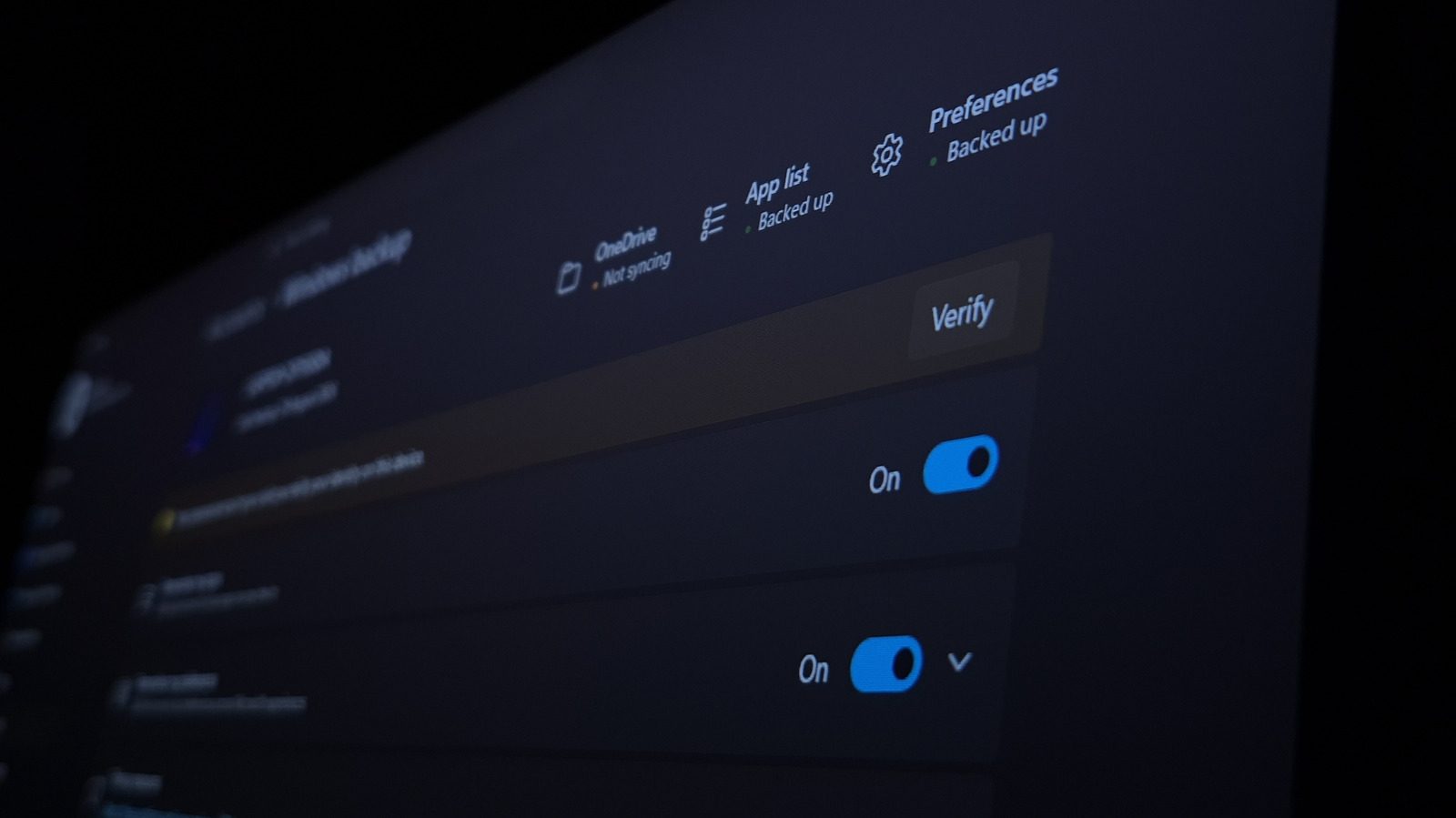
Improve your Windows 11 experience by changing these settings
Windows 11 works out of the box, but a fresh install still carries ads, suggestions and defaults that most people would rather change. Engadget's guide walks through the panels that make the biggest difference.
Windows 11 works out of the box, but a fresh installation still carries a long list of defaults, promotions and background tools that most people would rather change. Engadget's Ben Stegner has collected the settings that make the biggest difference, and notes that the system changes often enough to justify revisiting them.
Default apps and an extended clipboard
Windows keeps a separate default program for every file type, so an alternative browser, image viewer or PDF reader must be assigned in Settings > Apps > Default apps; otherwise the Open with menu becomes routine. Browsers get their own button, while Choose defaults by file type changes which app opens formats such as TXT.
The clipboard holds only the last copied item until Clipboard history is enabled in Settings > System > Clipboard. Win + V then shows recent text and images, the last 25 entries are kept, the Pin icon stores frequent snippets, and Paste as Text removes formatting. For heavier use, the guide points to the third-party manager ClipClip.
Turning off ads and suggestions
A clean install nags with suggestions that are mostly promotions for other Microsoft products, and muting them takes several stops: Settings > Personalization > Start for Show recommendations for tips, shortcuts, new apps, and more; Privacy & security > Search for Show search highlights; and Personalization > Lock screen, where Get fun facts, tips, tricks, and more is switched off and Windows spotlight replaced.
The remaining switches sit in Personalization > Device usage, Privacy & security > Recommendations & offers and System > Notifications, where the Suggested sender and both options under Additional settings can be disabled. A look at Apps > Installed apps for unwanted manufacturer software belongs to the same cleanup.
Smaller features worth enabling
Settings > System > Advanced adds an End Task entry to the right-click menu for taskbar apps, faster than opening Task Manager. Active hours under Windows Update > Advanced options can be set manually, so updates do not restart the PC during working time. Night light in Settings > System > Display warms the screen and can follow sunset to sunrise.
Storage Sense in Settings > System > Storage cleans the drive automatically, and Power Mode in Settings > System > Power can be set to Best performance, or through Power Options in the Control Panel if that option is unavailable. A PIN from Settings > Accounts > Sign-in options protects the login and lets Windows Hello unlock supported apps such as 1Password.
What to switch off
Under Windows Update > Advanced options, Delivery optimization shares update data with other PCs over a peer-to-peer connection; the guide advises limiting it to devices on the local network rather than the internet. Settings > System > Multitasking holds Title bar window shake, which minimises every other window when a title bar is shaken and is easy to trigger by accident. A final recommendation is a pass over startup apps.
SiTech — AI-powered web development
We build fast, modern websites and bring AI into real business workflows. Have a project or a question? We'd love to help.