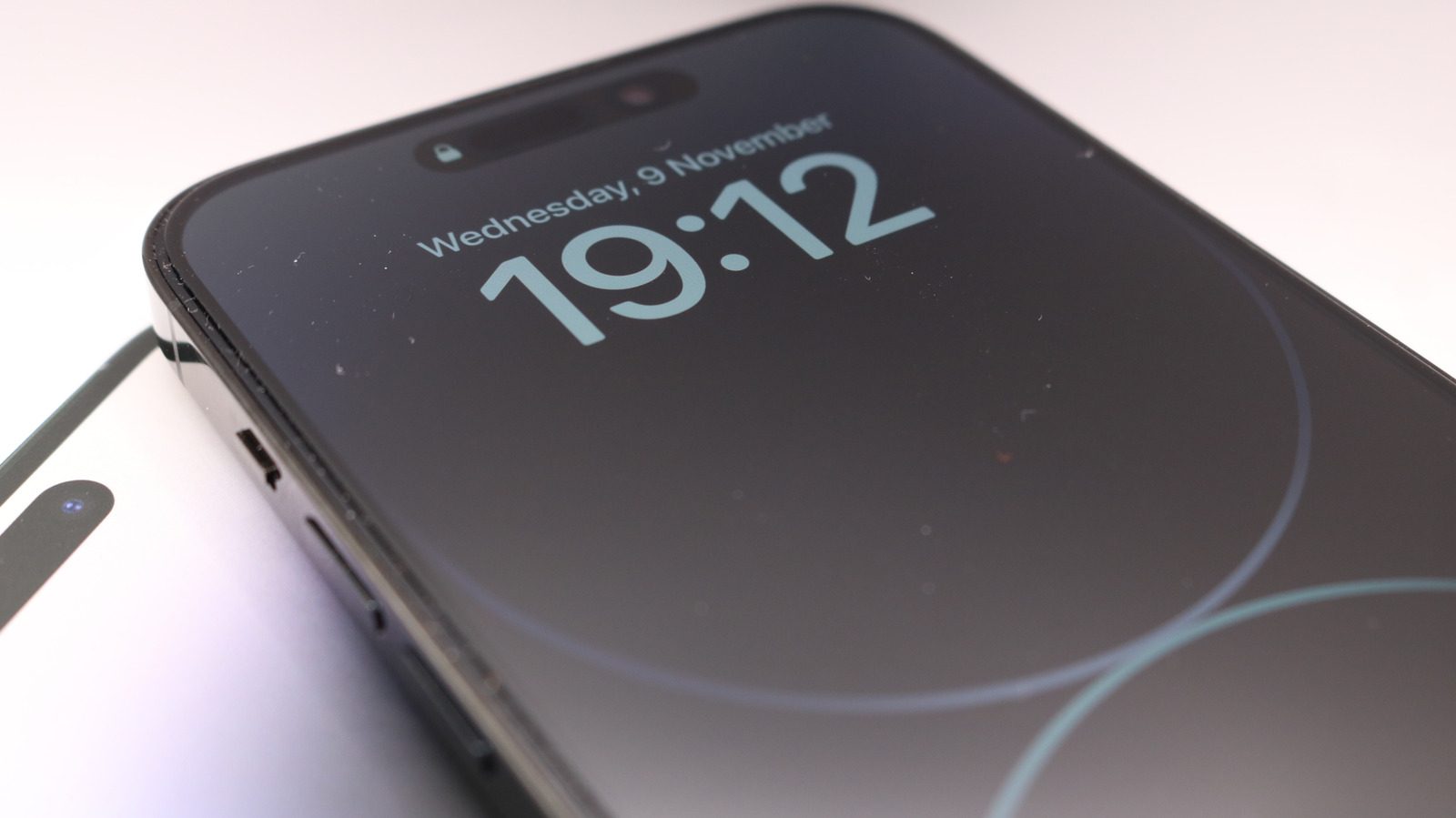
iPhone Always-On Display turning off: the main causes and simple fixes
Apple's Always-On Display keeps the Lock Screen dimmed but visible. If the screen shuts down completely, the cause is usually one of a few settings: Low Power Mode, Sleep Focus or Adaptive Power.
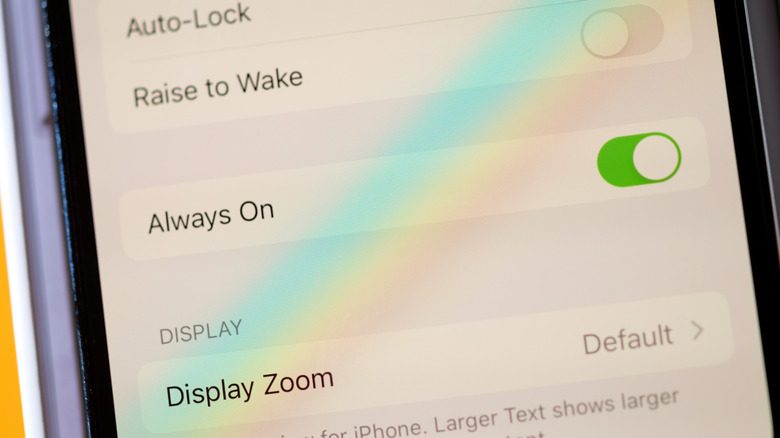
The Always-On Display on Apple's iPhone keeps the Lock Screen dimmed but readable, so the time, notifications and widgets stay visible without unlocking the phone. It is enabled by default, and the toggle lives under Settings > Display & Brightness > Always On Display. When the screen still shuts down completely, the cause is usually one of a handful of settings. Engadget's guide walks through each of them.
Which iPhones support Always-On Display
The feature is not available on every model. Support covers the iPhone 14 Pro and 14 Pro Max, iPhone 15 Pro and 15 Pro Max, iPhone 16 Pro and 16 Pro Max, iPhone 17, 17 Pro and 17 Pro Max, the iPhone Air, plus the iPhone 18 Pro and 18 Pro Max. On other devices the Lock Screen goes fully dark.
Why the screen keeps turning off
Some triggers are by design and tend to happen when you would not be looking at the screen anyway: if the iPhone is face-down, obstructed from view, or away from a paired Apple Watch, the display turns off. A clean front-facing camera also matters, since the phone needs to see you.
Two further cases follow the same logic: the display goes dark during a CarPlay session, to limit driver distraction, and while the Continuity Camera is in use, presumably to save battery. Those two cannot be adjusted, but Low Power Mode and Focus modes can.
Low Power Mode and Adaptive Power
Low Power Mode switches Always-On Display off. It can be disabled from the Control Center toggle, or on an iPhone 15 and later through Settings > Battery > Power Mode. On an iPhone 14 or older the setting sits in the main Battery menu. On newer models it is also worth turning off Adaptive Power in the same menu, because it can automatically re-enable Low Power Mode once the battery drops below 20%.
Sleep Focus and Focus Filters
By design, Always-On Display does not work while Sleep Focus is active. To check it, open the Control Center, tap Focus and select Sleep if it appears selected. The Health app can switch Sleep Focus on automatically at your bedtime. To stop that, open the Control Center, tap Focus, then the three dots next to Sleep, select Settings and turn the Schedule toggle off.
Other Focus modes let you decide whether AOD stays on. Open the settings of the mode you want, scroll to Focus Filters, select Add Filter, then under System Filters choose Always On Display and make sure it is enabled.
If the screen wakes too eagerly when you touch it, review the Raise to Wake option under Settings > Display & Brightness. For any remaining hiccups, restarting the iPhone clears them.
SiTech — AI-powered web development
We build fast, modern websites and bring AI into real business workflows. Have a project or a question? We'd love to help.