iPhone Clock App Alarm Scroll Ends at 4:39 in Little Known Quirk
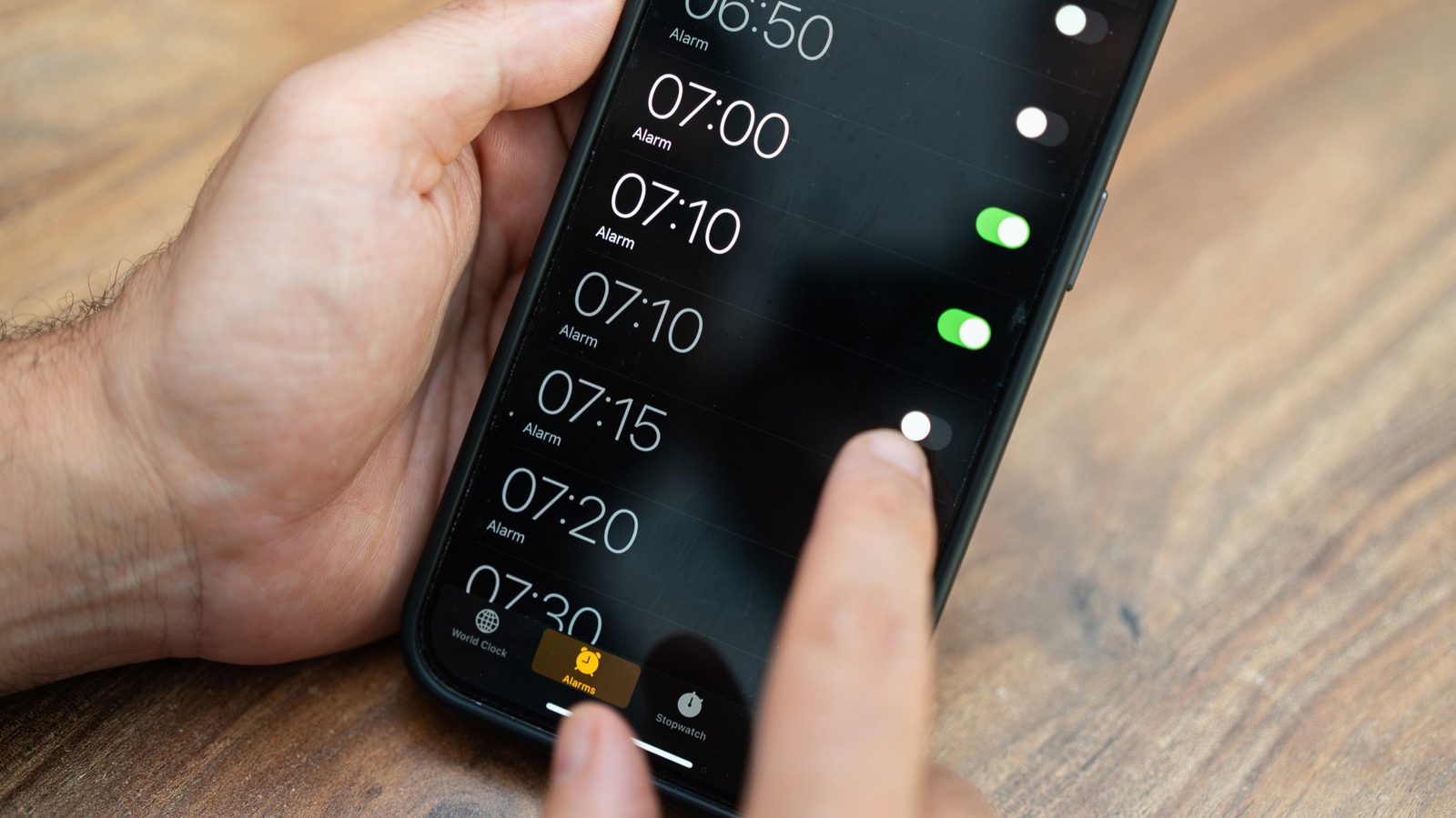
The iPhone Clock app hides several little known quirks, including an alarm picker whose scrolling stops at 4:39. Apple has not explained the limit, but the app also offers a live clock icon and switchable stopwatch faces.
The Alarm Picker Ends at 4:39
The iPhone Clock app has been a default app since the original iPhone launched 19 years ago, and for most users it has always been a fairly straightforward utility. However, a small curiosity hiding inside the alarm settings went viral in mid-2025: the hour and minute pickers look infinite at first glance, but rapidly scrolling through them eventually hits a dead end at 4:39. In military time the limit appears as 16:39. Reaching it takes several quick swipes, which is why most people never noticed it in the first place.
This endpoint does not actually restrict which alarms can be set. Apple has not weighed in on the reason, and reports and online discussions offer differing explanations, including speculation from an X user about something called Tableview. The numbers do not add up to anything meaningful like 23, so there is no need for conspiracy theories. The suggestion is to treat it as an interesting idiosyncrasy.
The Icon That Tells Time
Another detail is easier to spot once you know where to look. The Clock app icon is not static: it displays the current time, including a moving second hand. Apple introduced this feature back in iOS 7. The behavior changes slightly on devices running iOS 26.1 or later. When Low Power Mode is enabled, the second hand switches from a continuous sweeping motion to a once per second tick, like a traditional quartz clock. The change is purely visual, and no audible ticking is involved.
Stopwatch Tricks and StandBy Mode
There is one more option hidden in plain sight. Opening the Stopwatch inside the iPhone Clock app and swiping across the display switches between digital and analog stopwatch faces without installing another app. Unlike the alarm endpoint, this is a documented feature included in the iPhone user guide.
For a large bedside alarm clock, connect the iPhone to a charger and stand it up on its side. This activates StandBy mode, which displays widgets, photos, or a plain clock, and swiping left or right changes the clock style. Night Mode applies a heavy red tint so the screen is less intrusive in a dark bedroom. For the phone to behave like a standard bedside clock, Always On Display must be enabled in Settings, and a MagSafe charger with a kickstand works well. Some older iPhones lack Always On Display, so the screen needs a quick tap or a request to Siri.
Sources: Engadget
SiTech — AI-powered web development
We build fast, modern websites and bring AI into real business workflows. Have a project or a question? We'd love to help.